Do I need a white background?
No. Any clean, well-lit shot works: a plinth, a table or a lifestyle scene. The clip starts from your photo, so the background you upload is the background you get.
AI product video generator
Upload the shot, pick the move, get a 4–10 second clip with sound — no studio, no crew.
200 free starter credits in many countries · No card · Unused starter credits expire after 24 hours
One product shot
What you get back
Examples
Each clip says how it was made. The small inset is the photo it started from.
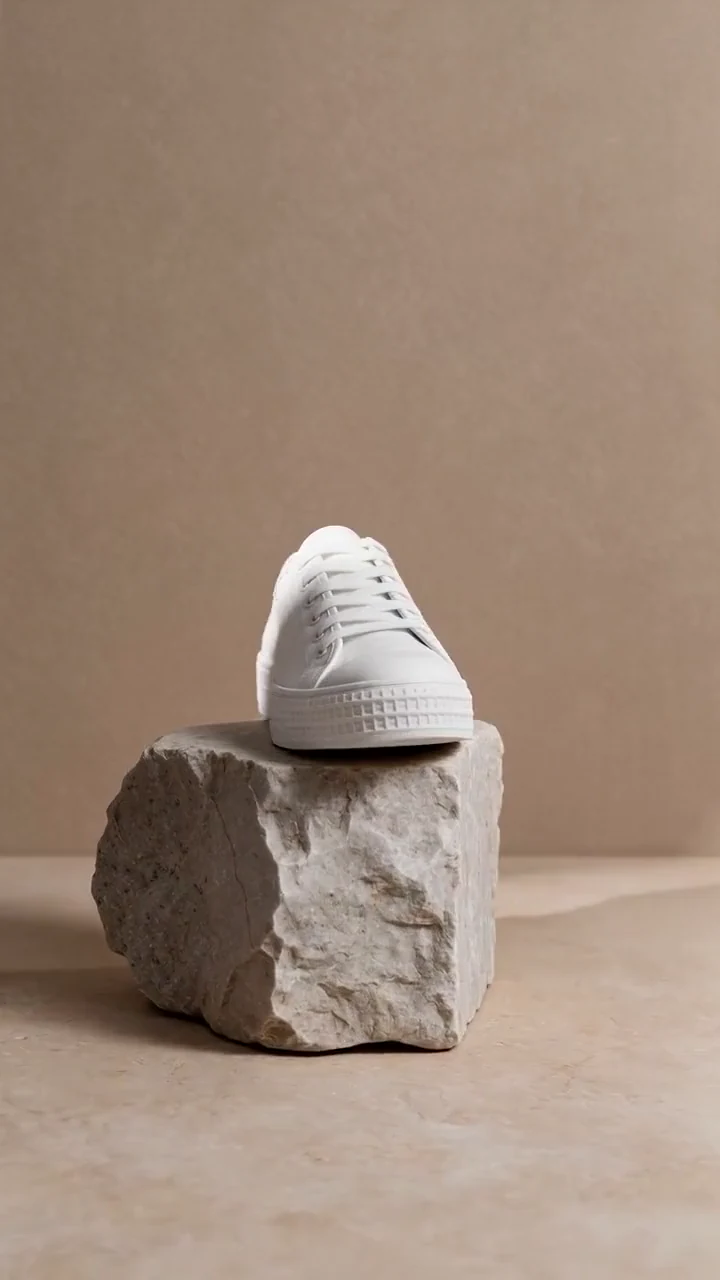
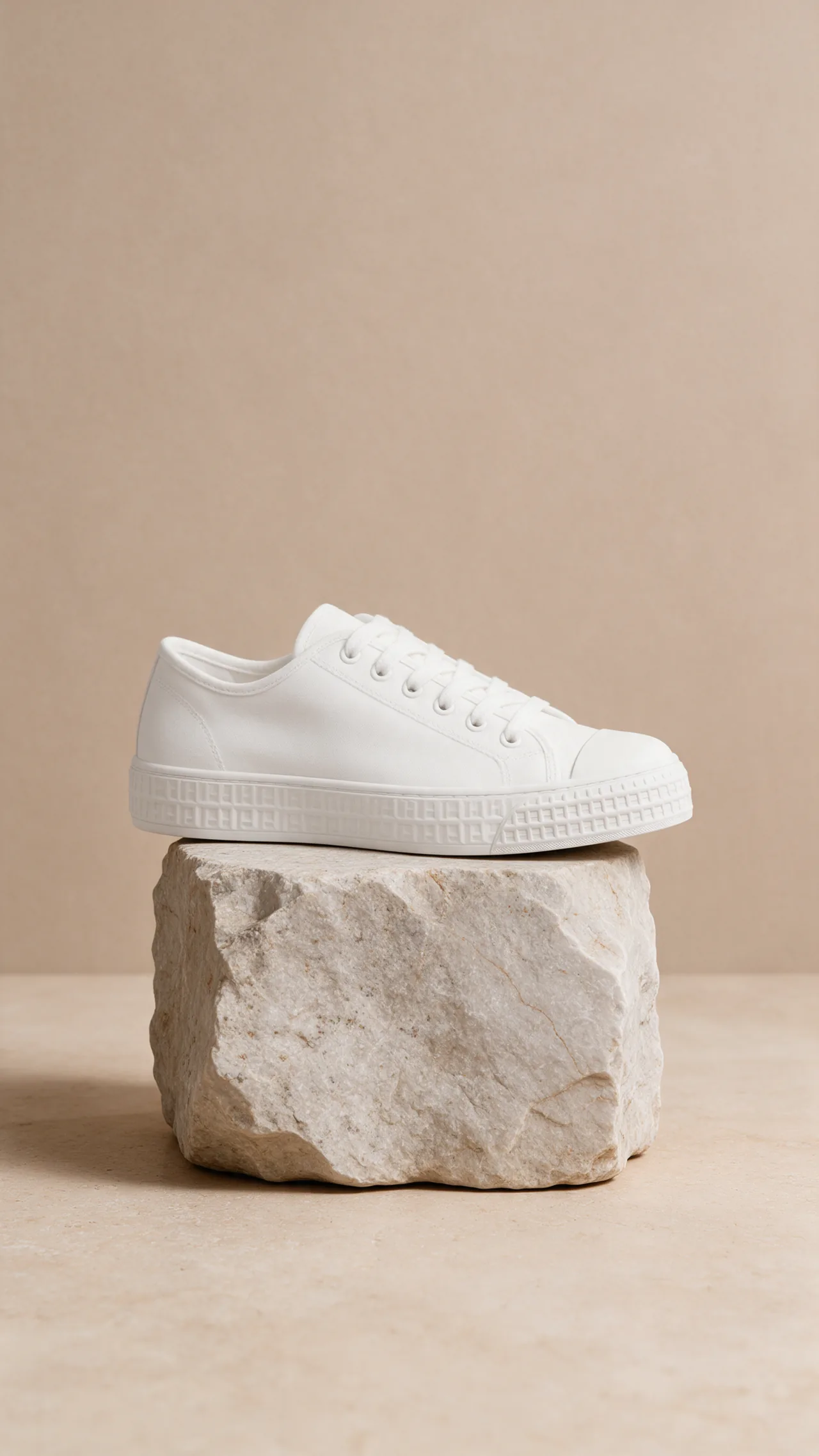 Photo
Photo
 Photo
Photo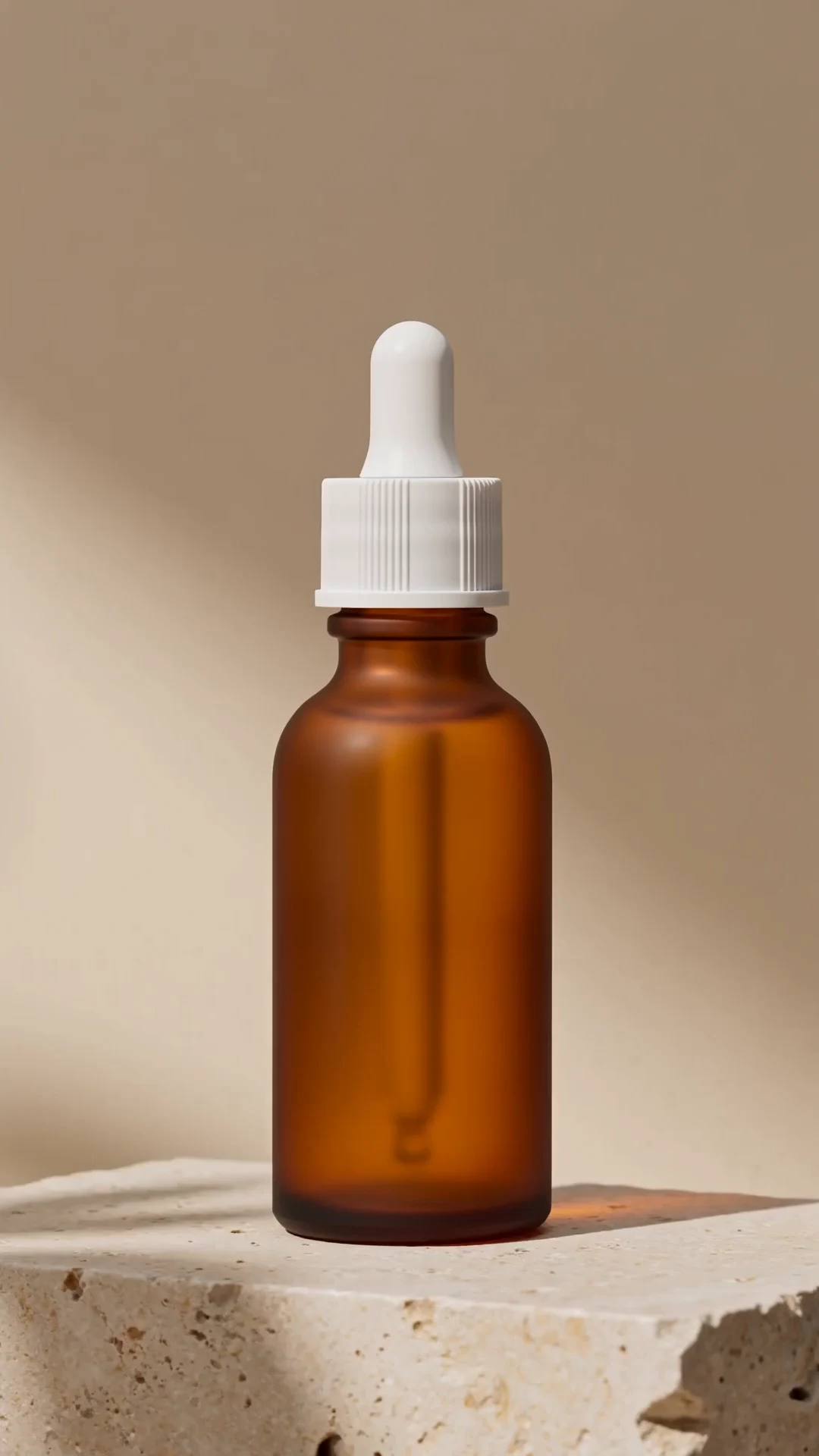
What sells
A band of light travels across the surface, so glass, metal and fabric show the finish a still photo flattens.
Liquid pouring, steam rising, a hand reaching in: one small action tells a shopper what the product is for.
A slow half orbit shows depth and form. The engine imagines any side your photo does not show, so keep the turn small or photograph the side you need.
How it works
A JPEG, PNG or WebP up to 10 MB. Let the product fill most of the frame and leave room for the move.
Orbit, light sweep, pour, unbox or push-in, or write your own: name the camera move and the one thing that happens.
Choose 16:9 or 9:16 and 4 to 10 seconds. The clip comes back with sound, and the editor exports it again in 16:9 · 9:16 · 1:1 · 4:5.
Specs
Render once, then export a 9:16 cut for Reels, TikTok and Shorts and a 1:1 cut for the listing from the same clip in the editor.
Questions
No. Any clean, well-lit shot works: a plinth, a table or a lifestyle scene. The clip starts from your photo, so the background you upload is the background you get.
The clip starts from your photo, so the logo is the one in the picture. Motion can soften fine print or bend a label, so use a sharp, close shot and check every take before you download it.
Check your marketplace's own upload rules. PrismPoster renders 360p or 720p on a free account and 1080p or 4K after any plan or credit pack, and the editor exports MP4 in 16:9 · 9:16 · 1:1 · 4:5.
In many countries, yes: new accounts get 200 free starter credits, no card, and unused ones expire after 24 hours. There, one 4-second 360p preview renders here without an account. Elsewhere, a small credit pack is the entry.
Yes. Render the clip once, open it in the timeline editor and export it again in another shape: 9:16 for Reels, TikTok and Shorts, and 1:1 or 4:5 for a listing or a feed, up to 4K.
PrismPoster claims no ownership of what you make, and every plan, the free one included, lets you use it commercially. Videos from a free account carry a visible AI label; a paid plan does not add one.
Longer clips, higher resolution, sound, songs and a timeline editor — in one account.
200 free starter credits in many countries · No card · Unused starter credits expire after 24 hours
Start creating free